
What if you open a video and see plain text that feels dull and hard to follow? Now imagine bright words that move, pop, and match each sound. That is where dynamic subtitles help, and this guide will show how to add lively captions in Wondershare Filmora with clear steps.
Through this intuitive AI tool, you can make text that fits the tone, mood, and pace of your clip. So, get to know the purpose of dynamic captions and audio ducking, and how Filmora works. By the end, explore Filmora’s expert tips that can help create modern, clear, and fun subtitles.
Part 1. Dynamic Subtitle – What Are Captions and Audio Ducking
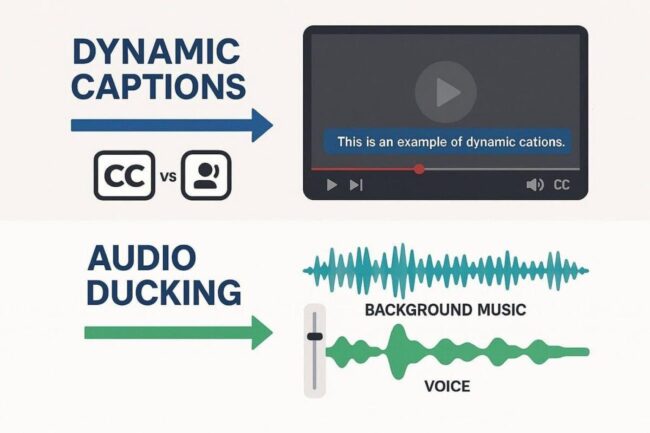
Dynamic captions are on-screen text that show what people say and what sounds you hear. They help people who cannot hear well and aid in noisy or very quiet places. Additionally, they make it easy for people who do not know the language well, showing words alongside the speech.
On the contrary, audio ducking is a way to lower one sound so another sound stays clear. Besides, it often lowers the music when someone speaks, which helps speech stay easy to hear and keeps the sound balanced.
Part 2. Dynamic Subtitles in Filmora – AI Captions and Audio Ducking
When it comes to adding dynamic subtitles in any video of any format, Wondershare Filmora makes it effortless. In its Titles tab, the Dynamic Caption tool lets you create captions for the entire video or for specific clips to achieve personalized results. Furthermore, users can choose from 20+ sources and target languages to get caption translations.
Unlike other tools, Filmora’s Automatic Caption generation takes just a few seconds and lets users preview captions in detail, with 95% accuracy. The tool also includes noise reduction and multi-speaker technology, eliminating the hassle of managing audio ducking. Most of all, the tool supports bulk editing, letting you import multiple video files and merge or split them to add dynamic captions in its easy-to-use timeline.
Key Features
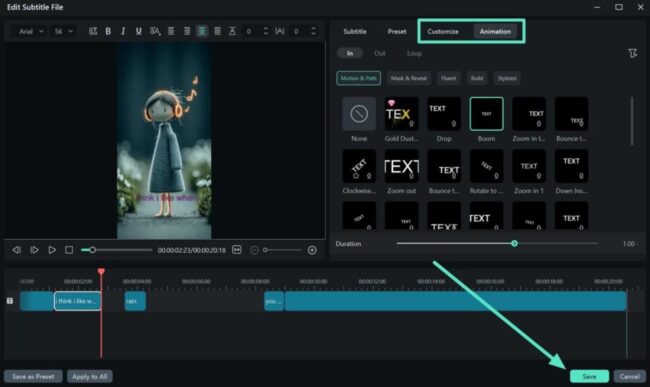
- 100+ animated subtitle templates: Upon creating dynamic captions, users can choose from 100+ animated subtitle templates to customize animations and transitions. After choosing from In, Out, and Loop styles, you can set the animation duration for each section.
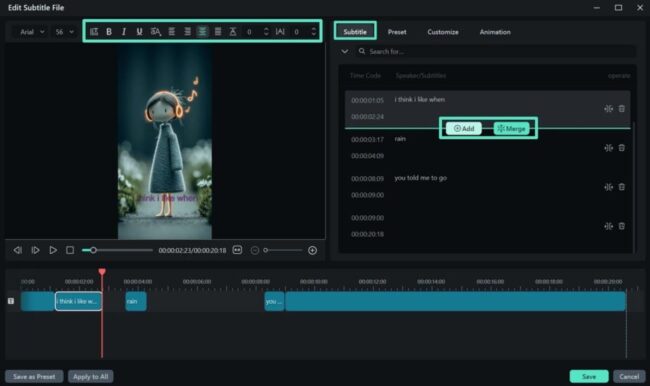
- Smart text editing: Within the Subtitles tab in its editor, you get the option to manually add or merge captions for further tailoring. There, you can also set the text orientation along with other text settings like bold or italics to make captions pop-up.
- Subtitles customization: In addition to animated styles, one can add Subtitles presets from 60+ options. Furthermore, you can manually adjust the caption’s opacity, angle, outline, and shadow with a slider, ensuring hassle-free editing.
- Easy video editing options: Other than captions, you can edit the video with dynamic captions by adjusting the Transform and Compositing sections. The foremost aspect is that both beginners and professionals can perform these tasks without needing any learning curve.
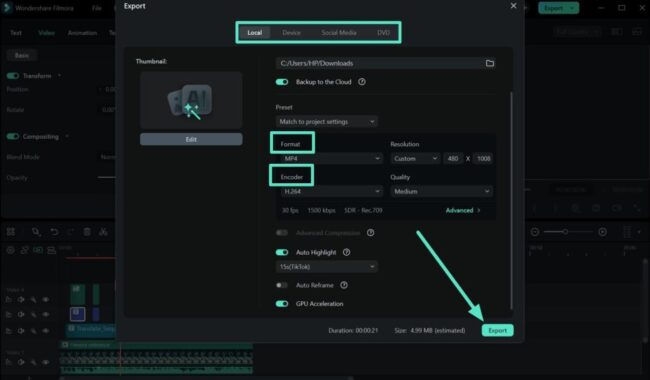
- Export options: After you are done manually editing the generated dynamic subtitles, you can export videos in MP4, MOV, AVI, etc. formats. Also, you can choose to save Local, Device, or Social Media with different Preset, Encoder, and Auto Highlight settings.
Part 3. Dynamic Subtitles in Filmora – How to Build Captions from Scratch
If you want to know how you can use this all-in-one solution to create dynamic captions, adhere to the detailed guide mentioned:
Step 1. Create the Project and Import Video
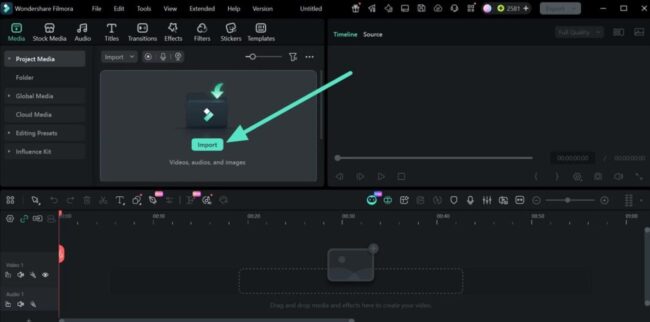
As you tap the “New Project” button on the main interface, choose the “Import” button to add the target video file.
Step 2. Choose the Dynamic Captions Parameter Settings
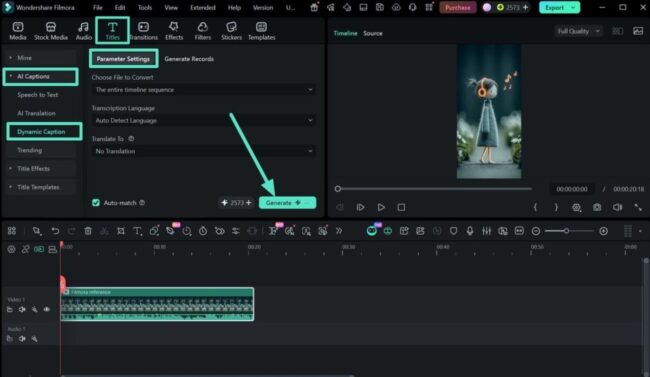
Now, go to the “Titles” section and in the “AI Captions” tab, choose “Dynamic Captions.” There, select the listed “Parameter Settings” for the file to convert, the source, or the target language, and click the “Generate” button.
Step 3. Edit the Video with Dynamic Captions
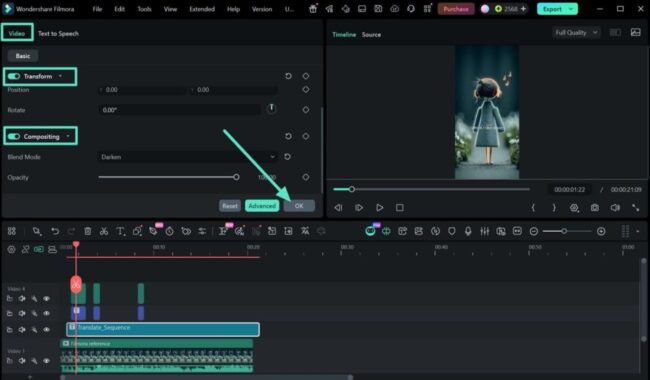
After the AI model creates subtitles, click the file in the timeline once, select the “Video” settings, such as “Transform” or “Composing,” and press “OK.”
Step 4. Modify the Dynamic Captions
To edit the captions, double-tap the generated file and head to the “Subtitles” section. There, choose to “Add” or “Merge” the captions, add text manually, or set the desired orientation.
Step 5. Add the Caption Animations and Save
To further alter the captions, you can also go to the “Customize” and “Animation” tab to pick from 100+ animated templates and make text pop-up. After you choose all the settings, click the “Save” button to continue exporting the project.
Step 6. Pick the Export Settings on Filmora
Press the “Export” button at the top right corner and in the pop-up menu, choose between “Local, Device, or Social Media” sections. Based on your choice, select the “Format, Encoder” and other settings, then click the “Export” button to save.
Part 4. Best Practices for Creating Dynamic Subtitles in Filmora
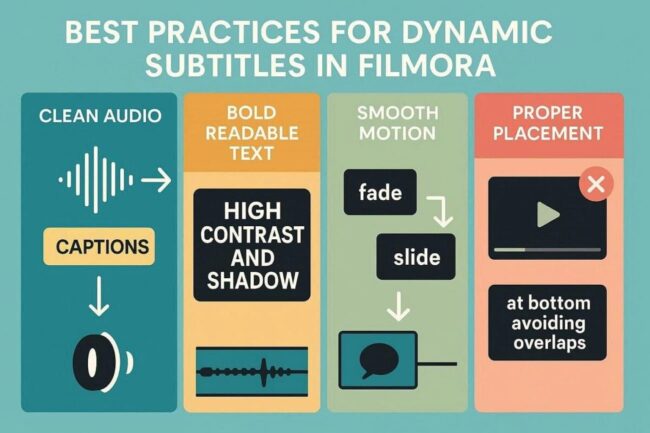
As you learn how to create dynamic subtitles, follow the 5 listed practices to get the foremost outcomes in 2026:
- Plan captions: Always start with a clean audio file so captions stay accurate, as high-quality sound helps AI produce better text. Additionally, place the text away from the screen edges so no text is cut off.
- Clear text: Choose simple fonts that look clean across all screens and keep the text large, so it stays easy to read. Additionally, pick a strong contrast, like light text on dark, and add a shadow or a box to make the words stand out.
- Soft motion: Add small motion, like a fade or slide, for style, and keep it smooth so the text stays easy to follow. Moreover, it’s better to use one main style for all text and focus only on keywords so they stand out more.
- Fix timing: Match each line to speech so the words feel right, and use timeline tools to place text in the correct spot. Keep the text on screen long enough to read, and avoid very fast changes that are hard to follow.
- Set position: Place the text near the bottom, but not too low; move it up if other graphics take that space. Finally, check vertical videos so apps do not cover text, and keep faces and main visuals clear at all times.
Conclusion
To sum up, dynamic captions boost video engagement, accessibility, and retention, particularly on social media. Therefore, to create one, Filmora is the recommended choice for novices and professionals alike.
Thus, follow the simple steps mentioned in this guide and learn how you can make your videos clear, modern, and easy to watch with eye-catching captions.