
Technical accuracy is only one dimension of a useful architecture diagram. The same system, rendered in the wrong visual style for its audience, creates friction — a diagram built for engineers can overwhelm a stakeholder presentation; a sketch-like informal visual can undermine credibility in a technical design review.
Architecture Diagram AI offers six built-in visual styles — Technical, Minimalist, Dark Mode, Whiteboard, Colorful, and 3D Isometric — plus Custom mode for specifying any visual direction in plain text.
Every style is available from the same prompt, on the same platform, in a single generation — making it possible to produce the right visual for every audience without rebuilding the diagram each time.
Style selection is a communication decision. This guide covers what each style produces, when to use it, and how to combine style selection with the platform’s other capabilities to get the best result from every generation.
What Are Architecture Diagram Visual Styles?
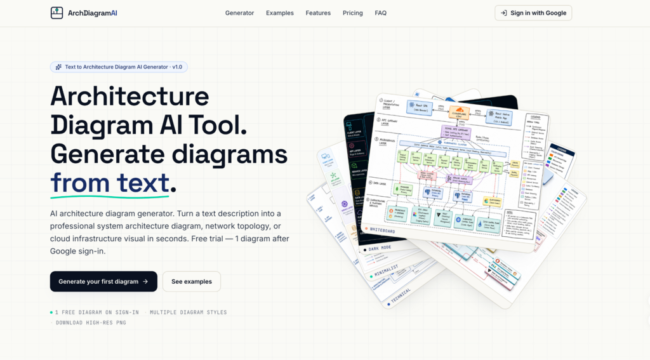
Most diagramming tools have one default visual treatment. Changing the look means manual redesign — new color choices, different component shapes, adjusted line weights.
Visual styles in Architecture Diagram AI work differently: the AI applies a complete visual treatment to the same system structure based on the style selected, producing a meaningfully different output — not just a color change, but a different compositional approach suited to the target context.
How it works:
- Describe your system in plain English — Enter an architecture description in the prompt. The same description can be reused across multiple style generations without modification.
- Select a visual style — Choose from six built-in styles or use Custom mode to describe the target visual treatment directly at the prompt.
- Generate and download — a watermark-free PNG at 1K, 2K, or 4K resolution in 20 to 60 seconds. Generate multiple styles from the same description to produce audience-appropriate versions of the same architecture.
What You Can Create with Architecture Diagram Visual Styles
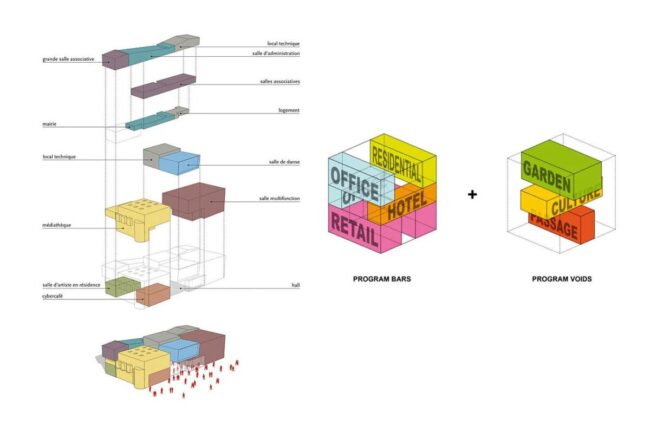
- Engineering documentation visuals — Technical-style diagrams for RFCs, internal design docs, and system architecture wikis
- Stakeholder presentation diagrams — Minimalist or 3D Isometric diagrams for executive overviews and platform strategy decks
- Blog and tutorial visuals — Colorful or Whiteboard diagrams for technical blog posts and educational content where visual engagement matters
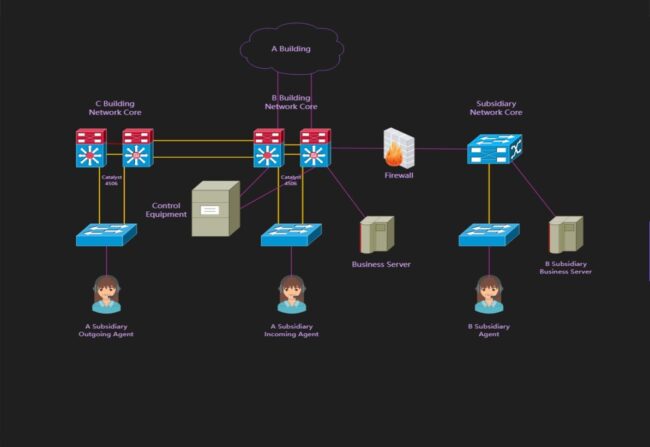
- Developer content assets — Dark Mode diagrams for developer-facing documentation, README files, and conference talks
- Consistent documentation sets — Multiple diagrams in the same visual style across a documentation series, using a reference image to maintain visual consistency
Core Capabilities of Architecture Diagram AI
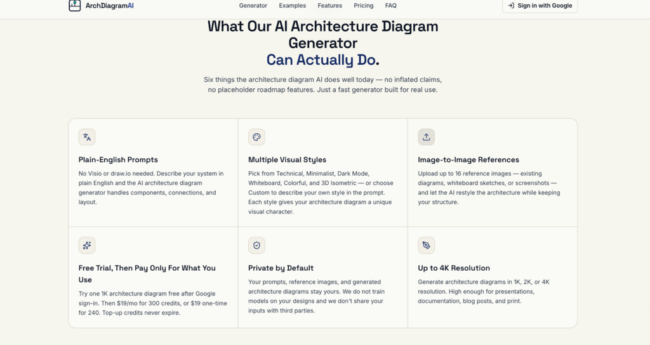
Plain-English Prompts
Describe your architecture in natural language — no diagramming syntax, no symbol libraries, no manual layout.
The AI interprets architectural vocabulary in context and renders components in structurally appropriate positions. The same prompt works across every style without modification.
Multiple Visual Styles From One Description
Six built-in styles plus Custom mode cover the full range of contexts where architecture diagrams are used: internal engineering documentation, executive presentations, developer-facing content, published blog posts, and platform storytelling. Switching styles requires only selecting a different option — not rebuilding the diagram.
Image-to-Image References
Upload up to 16 reference images alongside your prompt — whiteboard photos, legacy diagrams, Confluence screenshots, hand-drawn sketches.
The AI reads the structural information from each image and incorporates it into the output, while the prompt and style selection determine the final visual treatment.
This makes it possible to refresh outdated diagrams, consolidate partial sources, and convert rough sketches into documentation-quality visuals without starting from scratch.
High-Resolution Output

Export at 1K, 2K, or 4K resolution as a watermark-free PNG. Choose 2K or 4K for diagrams with many labeled components, or for any output destined for slide decks and published content where readability at scale matters.
Combining all four capabilities produces the best results:
- Be specific in your prompt. Name components and their architectural roles. Vague descriptions produce vague layouts.
- Match style to audience. Technical for design reviews, Minimalist for executive decks, 3D Isometric for platform blogs, Dark Mode for developer READMEs.
- Upload reference images for complex systems. A whiteboard photo or legacy diagram gives the AI structural context that text alone can’t fully convey.
- Choose resolution for the output context. 2K or 4K for slides and published content; 1K for quick internal drafts.
- Iterate freely. Each generation takes under a minute — adjust the prompt, switch the style, add a missing component until the output fits.
Who This Is Built For
- Developers & Engineers — Generate Technical or Dark Mode diagrams for system documentation, design reviews, and README files without manual diagramming
- Tech Leads & Architects — Adapt the same architecture description into multiple styles for different audiences — engineering peers, executives, and external stakeholders — without rebuilding the diagram
- Technical Writers & Bloggers — Match diagram style to the visual tone of the content being produced, from Whiteboard for approachable tutorials to 3D Isometric for flagship engineering blog posts
Pricing
| Plan | Price | Credits | ResoluCtion | Styles Available |
| Free | $0 | 1 credit on signup | 1K | All 6 styles + Custom |
| Pro | $19/month | 300 credits/month | 1K / 2K / 4K | All 6 styles + Custom |
| Team | $59/month | 1,500 credits/month | 1K / 2K / 4K | All 6 styles + Custom + Branded watermark templates |
One-time top-up credits are available at $19 for 240 credits — no expiry, no recurring billing.
Conclusion
Visual style is not a cosmetic decision — it is the difference between a diagram that reaches its audience and one that creates friction.
With six built-in styles and Custom mode, Architecture Diagram AI makes it possible to produce the right visual treatment for every context from the same system description, without redesigning the diagram or switching tools.
For anyone who needs architecture diagrams that communicate as effectively as they are technically accurate, matching style to audience is the single highest-impact adjustment available. Start with one free diagram at architecturediagramai.com — Google sign-in required, no credit card needed.