
Filming the perfect shot requires time, patience, and ideal conditions. Unfortunately, it is incredibly common to review your footage only to spot a stray pedestrian, a random vehicle, or an unsightly piece of trash ruining the background.
In the past, trying to remove things from video required frame-by-frame manual editing using complex and costly video editing software.
Today, artificial intelligence has decisively changed the landscape.
By utilizing AI-enabled video editors to remove objects from video files, you can save hours of editing time while achieving professional results, all in one click. Read this comprehensive 2026 guide to know how.
Part 1: Erasing Unwanted Elements on Desktop Computers (Step-by-Step)
Despite cloud-based apps, desktop software remains the gold standard for video editing, offering the best processing power and control to remove object from video with precision. Here are the top three tools for PC and Mac users.
1.1. Wondershare Filmora

When it comes to the best-possible, user-friendly solution to edit videos with robust AI technology, it is hard to beat Filmora. It seamlessly integrates classic video editing with AI tools such as AI video object remover to erase elements from videos naturally.
How to use it:
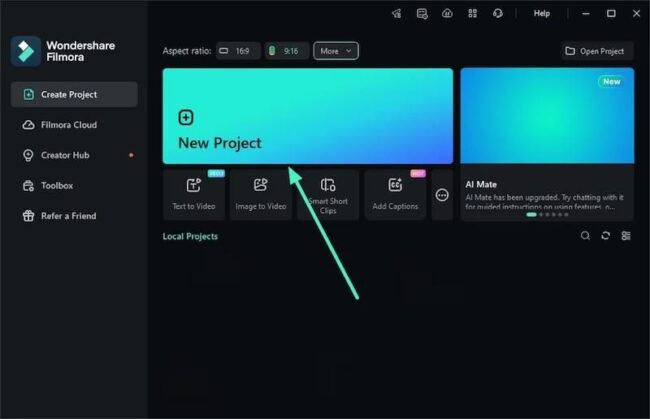
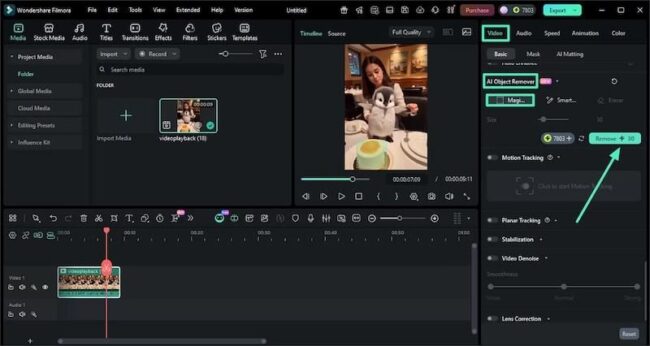
Step 1: Importing a video into Filmora.
Create a New Project:
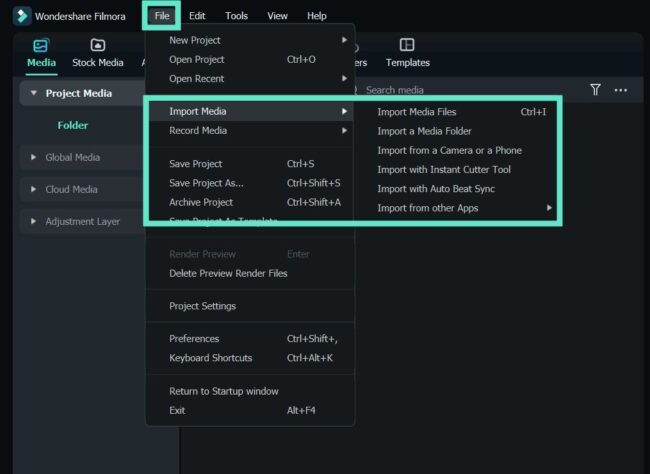
Import your video into the timeline:
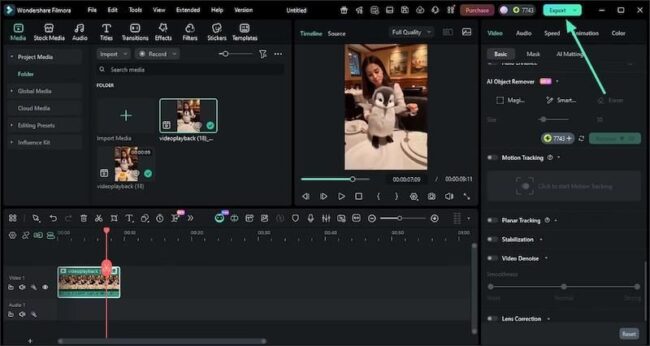
Step 2: Remove the object from the video with the AI Object Remover tool.
Locate and enable Video properties panel on the right side of the app window and select AI Object Remover. There are two ways you can remove objects.
Remove object using Magic Box:
Select Magic Box. Draw a box on the object you want to remove in the preview window to select the object. Click Remove.
Remove object using Smart Brush:
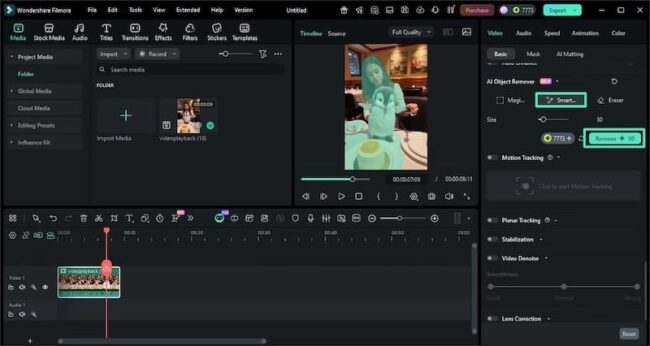 Smart Brush offers precise selection. Brush the cursor over the distracting object and press Remove.
Step 3: Saving and exporting.
Click the Export button at the top-right to save and export your clean video.
1.2. Adobe After Effects

For professional filmmakers, Adobe After Effects provides the Content-Aware Fill feature, that comes highly regarded. This is an extremely powerful object remover video tool designed for highly detailed background replacement in professional and production environments.
How to use it:
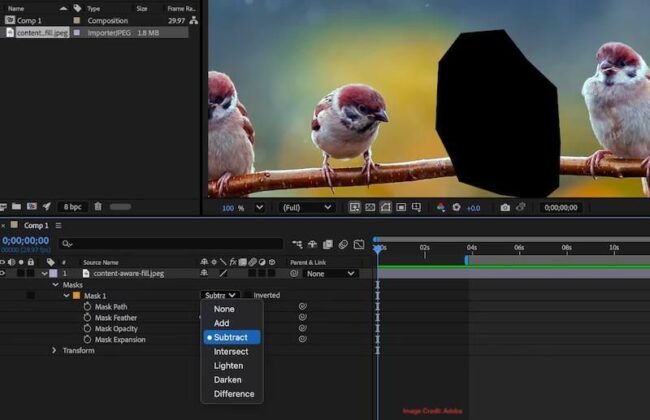
Step 1: Draw a mask around the object you want to remove and set it to Subtract.
Step 2: Go to Windows > Content-Aware Fill to open the panel.
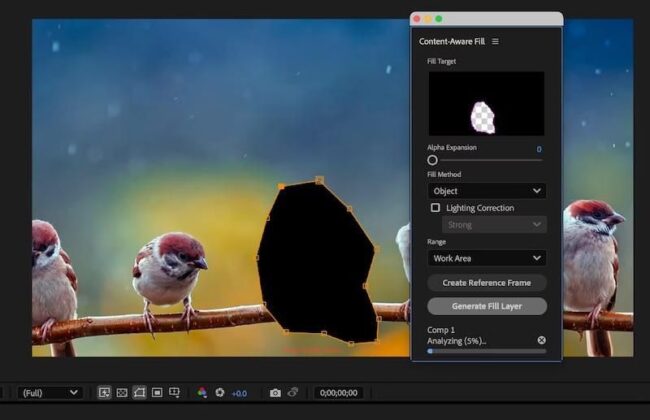
Step 3: Inside the panel, select Fill Method and Range and then click Generate Fill Layer.
Part 2: Clearing Distractions from Video on Android & iOS
For your on-the-go needs, here are two mobile apps that are perfect for quick fixes. Here is how to remove a person from a video directly from your smartphone.
2.1. Filmora Mobile App
The mobile counterpart to the top desktop pick brings powerful AI features directly to your phone. It is ideal for TikTok, Instagram Reels, and YouTube Shorts.
How to use it:
Step 1: Start a new project.
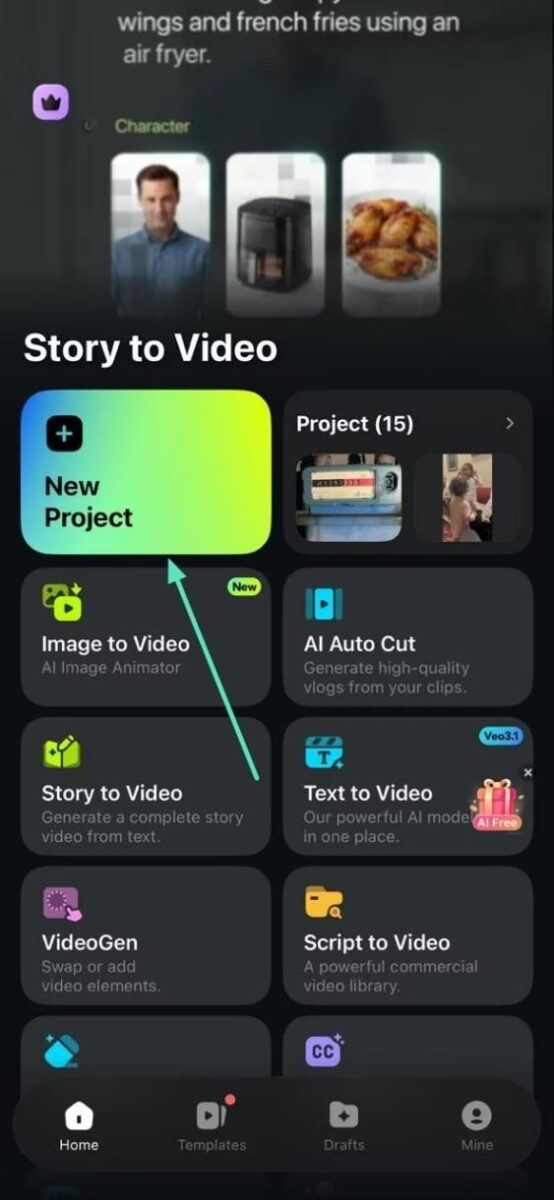
Step 2: Access AI Remover.
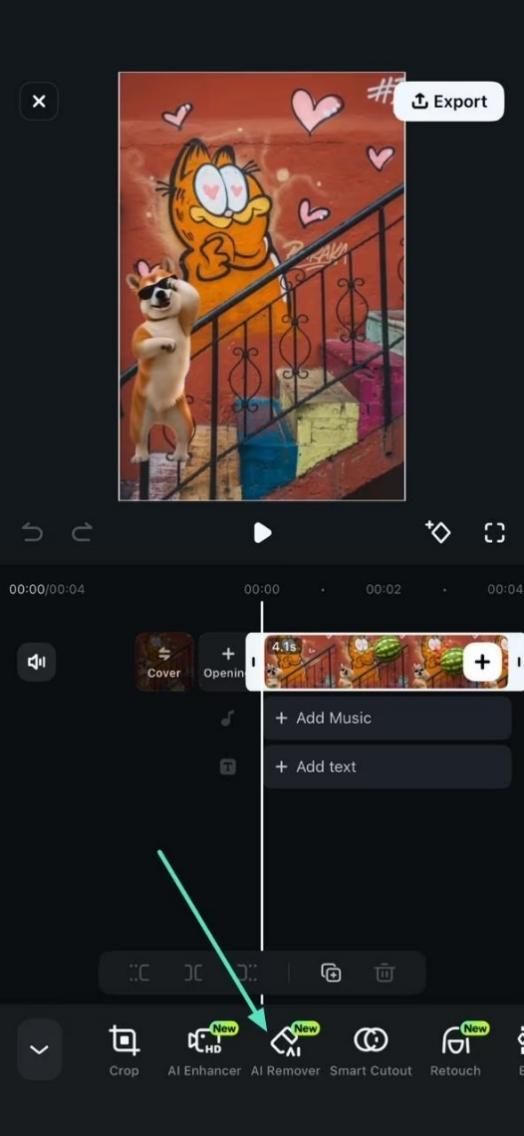
After selecting your video, tap the video and select AI Remover at the bottom.
Step 3: Set parameters for removal.
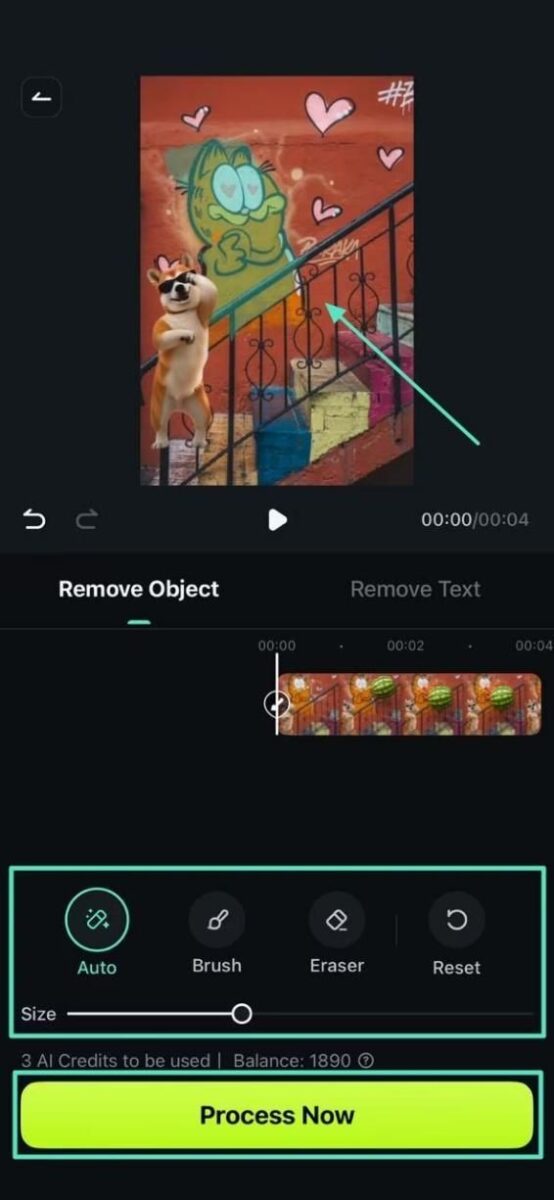
Select the brush type and size, and then select the element you want to remove. Click Process Now when done to start processing.
Step 4: Export the results.
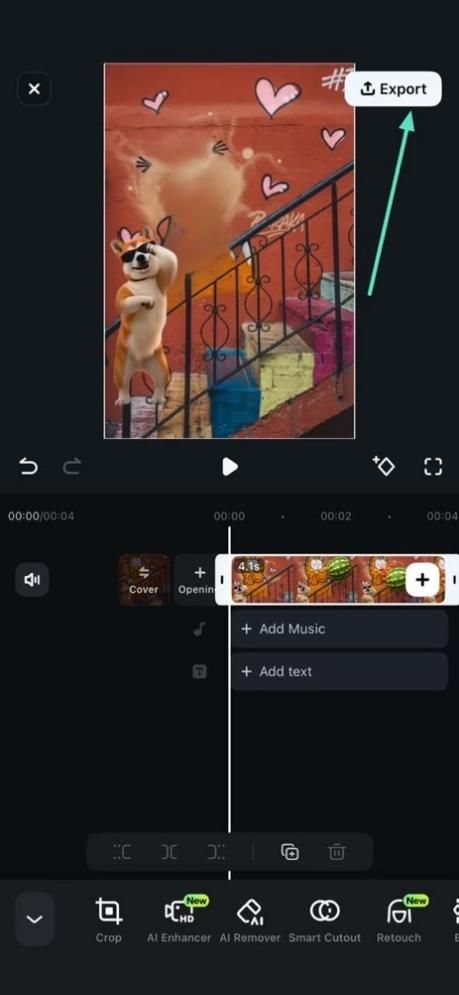
Tap Export floating at the top right corner to export your results.
2.2. CapCut
CapCut is highly popular video editing app among users for social media editing, although it might not be available in some geographies due to restrictions.
How to use it:
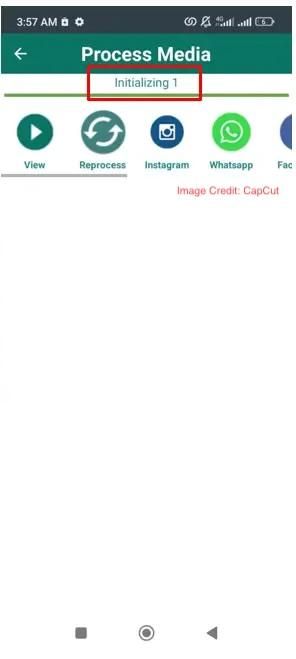
Step 1: Launch CapCut and tap Select Video to upload a video.

Step 2: Tap the Drawing Tool to select the area you want to remove. Select Clock to set removal time.
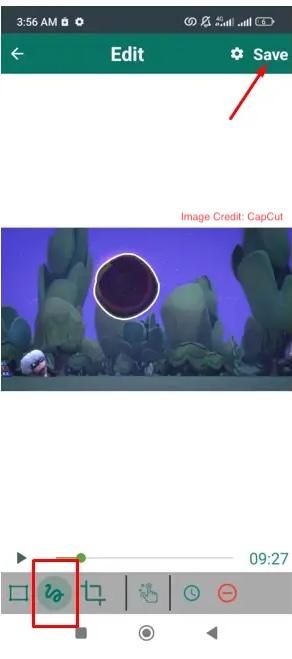
Step 3: Tap Save to remove the object.
Part 3: Deleting Elements from Videos Online
If you do not want to download any software, browser-based tools are highly efficient albeit functionally limited alternatives.
3.1. Media.io Online Watermark Remover
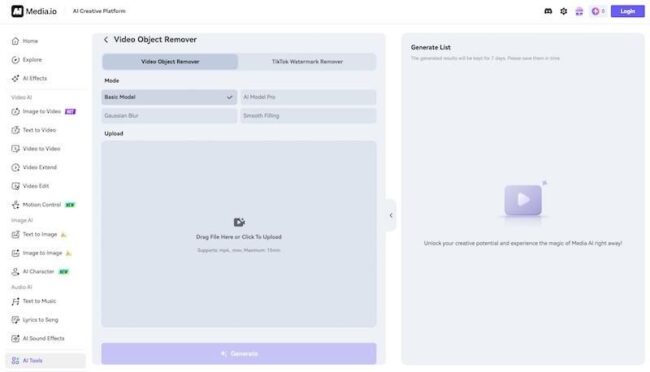
Media.io provides a fast way to remove object from videos online for free.
How to use it:
Step 1: Visit the Media.io website and upload your video.
Step 2: Highlight the specific area containing the object or watermark you want to remove using the virtual brush.
Step 3: Click Remove and wait for the magic to happen.
Step 4: Download the video free of watermarks!
3.2. RunwayML

RunwayML offers professional-grade AI object removal from video, with them really leaning into the AI bit. All you need to do is literally tell them what you want to remove, the rest is handled by the AI engine!
How to use it:
Step 1: Upload your video.
Step 2: Type what you want removed.
Step 3: The AI engine handles the removal.
Part 4. Fast Comparison of Top Video Object Erasers
| Filmora | CapCut | RunwayML | Media.io | Adobe After Effects | |
|---|---|---|---|---|---|
| Platform | Desktop and Mobile | Desktop and Mobile | Browser-based | Browser-based | Desktop |
| Ease of Use | Intuitive | High | Good (requires AI prompting) | High | Requires Learning |
| Quality | Very High | Good | Industry-leading | Good | Industry-leading |
| Best For | Everyday video editing | Quick edits | Advanced AI editing | Fast online editing | Professional VFX |
| Cost | Affordable | Affordable | Credit-based | Free + paid options | Expensive subscription |
Part 5. Pro Tips for the Best Results
A clean edit requires more than just good software. It starts at the time of shooting the video itself. Keep these tips in mind:
- Steady Camera: AI object removal works best when the background is not shaking. Use a tripod whenever possible.
- Ensure Good Lighting: High contrast between the subject and the background makes it easier for the AI to track and delete the right pixels.
- Keep Backgrounds Simple: Complex backgrounds make it more difficult to remove foreground objects.
- Create Short Clips: Processing shorter clips gives more accurate results.
Part 6. Frequently Asked Questions (FAQ)
FAQ 1. Can I remove a person from a video for free?
Yes, with apps like CapCut and online platforms like Media.io.
FAQ 2. Does AI video object removal work on moving objects?
Absolutely! Motion tracking allows you to highlight a moving person or car, and the AI then analyzes their trajectory and replaces the object frame by frame as it moves across the screen.
FAQ 3. Will the background look blurry after removing something?
It doesn’t when background is relatively simple, and it might with more complex backgrounds that are difficult to reconstruct.
Conclusion
Removing unwanted elements from videos no longer requires a massive budget or advanced VFX training. Whether you are editing on a PC, a mobile device, or directly in your browser, AI-powered tools have made the process incredibly accessible.
Versatile video editing software like Filmora is highly recommended to seamlessly remove object from video projects and more. Download now and supercharge your video editing routine today!