
Graphic designers need AI tools that remove friction from real design tasks: image editing, background cleanup, layout testing, UI production, color exploration, mockups, and visual concepts.
The best AI tools for graphic designers are not replacements for taste, typography, or brand judgment.
They are practical assistants that help you move faster while keeping the work clean, usable, and client-ready.
Quick Tool Map For Everyday Design Decisions
A simple tool map helps you avoid forcing one AI app to do every job.
| Tool | Best practical use | Check before delivery |
| NanoMaker AI | Prompt-based image edits | Scene realism |
| Adobe Firefly | Commercial creative assets | Product accuracy |
| Canva Magic Studio | Fast marketing layouts | Brand consistency |
| Figma AI | UI workflow support | Component logic |
| remove.bg | Background removal | Edge quality |
| Let’s Enhance | Image upscaling | Over-sharpening |
| Khroma | Color palettes | Contrast |
| Kittl | Typography and mockups | Export quality |
| Ideogram | Text in images | Spelling |
| Runway | Motion concepts | Continuity |
The best setup is usually small. Pick the tools that solve your daily bottlenecks, then build a repeatable review process around them.
NanoMaker AI For Prompt-Based Image Editing
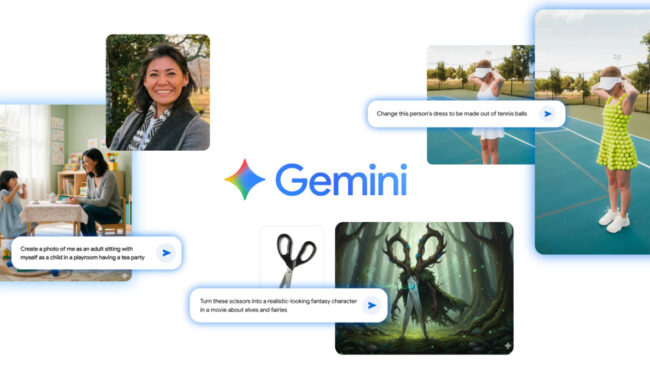
Nanobanana maker is useful when you want quick prompt-based image edits without building a complicated production setup.
NanoMaker AI lets users describe edits in natural language, optionally upload JPEG, PNG, or WebP images up to 5MB, and get fast results with character consistency and scene blending.
Use it for focused visual changes rather than vague “make it better” prompts. A designer might ask for a cleaner product background, softer lighting, a different room setting, or a more consistent character pose.
Good uses include:
- Product scene variations
- Social media image edits
- Fast visual mockups
- Character consistency checks
The key is to review details manually before using any output in final work.
Adobe Firefly For Commercial Creative Assets
Adobe Firefly fits designers who already work inside Adobe’s creative ecosystem. Adobe describes Firefly as including commercially safe generative AI models for images, video, audio, and vectors, which is important when the work is intended for campaigns, clients, or brand assets.
Firefly is strongest when you need controlled visual generation, image expansion, background changes, and creative options that can later be refined in Photoshop, Illustrator, or Adobe Express.
Use it when you need:
- Campaign concept visuals
- Background generation
- Generative fill ideas
- Adobe-friendly editing flow
- Commercial-use clarity
It still needs a designer’s eye. Check hands, shadows, product details, brand colors, and anything that could look slightly artificial.
Canva Magic Studio For Fast Marketing Graphics
Canva Magic Studio is useful for designers, marketers, and small teams that need quick layouts without starting from a blank canvas. Canva says its AI tools can turn AI designs into editable layouts and generate creative material inside the editor.
This makes it practical for social posts, presentations, event graphics, simple ads, and quick branded templates. It is not always the best place for complex identity work, but it is very good for speed.
Use Canva carefully when brand consistency matters. Lock in your fonts, colors, spacing rules, and logo usage first, then let AI help with versions.
That way, the work stays fast without drifting into generic template territory.
Figma AI For UI Design And Product Teams
Figma AI is one of the most practical AI tools for graphic designers who also touch web, app, or product design. Figma says its AI tools can help find assets, replace content, add interactions, rename layers, rewrite or translate text, shorten text, and make or edit images.
That matters because interface design is full of small production tasks. Renaming layers, adjusting placeholder content, testing microcopy, and finding old components can quietly eat hours.
Use Figma AI for:
- UI copy fitting
- Asset search
- Layer cleanup
- Early layout exploration
It works best when your design system is already organized. AI cannot rescue messy components forever.
remove.bg And Adobe Express For Background Cleanup
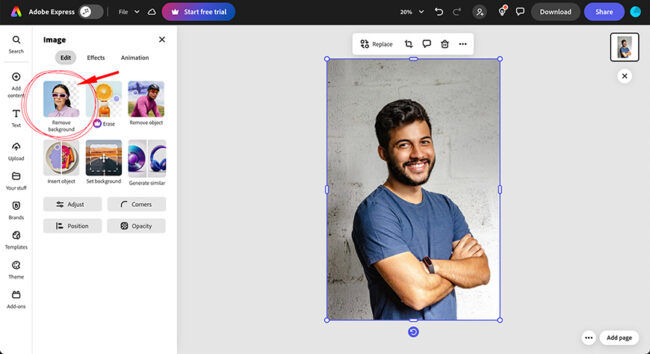
Background removal is one of the simplest AI wins in design production. remove.bg says it removes image backgrounds automatically in five seconds with one click, which makes it useful for e-commerce shots, profile images, simple product banners, and presentation graphics.
Adobe Express also offers a free background remover that works with photos, product images, and headshots, then exports a clean transparent PNG.
Use these tools for fast cutouts, but do not skip inspection. Hair, glass, shadows, transparent objects, and soft edges often need manual correction before the image looks professional.
A quick cutout is helpful. A clean cutout is what clients notice.
Let’s Enhance And Khroma For Image Quality And Color
Let’s Enhance helps when an image is too small, soft, or weak for the format you need. Its official site says the upscaler can increase resolution up to 16x, with use cases such as posters, merchandise, wallpapers, AI art, logos, and scanned images.
Khroma solves a different problem. It uses AI to learn the colors you like and generate palettes you can discover, search, and save.
Use this pair for practical finishing work:
- Upscale weak source images
- Improve draft visuals
- Build palette directions
- Compare color moods
- Support brand exploration
Still check contrast, accessibility, and print behavior manually.
Kittl, Ideogram, Midjourney, And Runway For Creative Exploration
These tools are strongest when the project needs visual exploration rather than simple cleanup. Kittl offers AI design tools for image generation, background removal, vectorizing photos, mockups, templates, and creator-focused graphics.
Ideogram is useful when text inside images matters. Its official site highlights better typography, stronger prompt alignment, cleaner editing, and text rendering inside compositions.
Midjourney remains popular for moodboards and art direction, while Runway is useful for motion concepts and AI video. Runway says Gen-4 can create consistent characters across lighting conditions, locations, and treatments from a single reference image.
Use them for ideas, then refine the final design carefully.
How To Choose AI Tools For Graphic Design Work
Start with the job, not the hype. A useful AI design tool should solve one clear problem inside your workflow, such as removing backgrounds, generating visual directions, resizing assets, editing images, or speeding up interface work.
A 2024 study titled “What’s Next? Exploring Utilization, Challenges, and Future Directions of AI-Generated Image Tools in Graphic Design,” published on arXiv, found through designer interviews that AI image tools are often useful for ideation, communication, and collaboration. That is the practical way to think about them.
Use AI tools when they help you:
- Explore visual directions faster
- Reduce repetitive production work
- Prepare cleaner drafts for review
Next, look at the exact tools designers can use for those jobs.
Final Thoughts
AI tools for graphic designers are most valuable when they save time without lowering standards. All of the above have a place in a modern design workflow. The smart approach is not to use all of them on every project.
Use the right tool for the right task, then apply human judgment before anything goes live. That balance keeps the work fast, polished, and professional.