
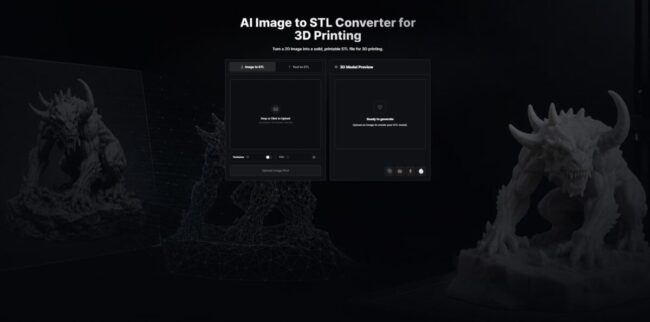
A few years ago, if you wanted to turn a photograph into a 3D‑printable object, your options were limited and deeply technical. You could learn photogrammetry, invest in a structured‑light scanner, or spend hours manually rebuilding the shape in a modelling package.
None of these paths were accessible to the average maker, hobbyist, or small‑business owner who simply wanted to hold a physical version of a sketch or a photo. The emergence of AI‑driven image‑to‑STL converters has changed that equation, but not all tools are created equal, and not every use case benefits equally from the same approach.
This raises a practical question: who actually gains from this technology, and under what conditions does it genuinely save time and effort?
A Tool Built for Function, Not Just Visuals
The distinction that matters most is between tools built for visual AI concepts and tools built for functional 3D printing. The former produce models that look impressive on screen but collapse under the demands of a slicer, non‑manifold edges, paper‑thin walls, disconnected geometry.
The latter understand that a printable STL needs to be solid, watertight, and structurally sound. The imgtostl workflow positions itself firmly in the functional camp, and that distinction shapes everything from the interface design to the output quality.
Rethinking What “Ready for Printing” Actually Means
One of the more persistent misconceptions about AI image‑to‑STL tools is that they produce finished, print‑ready models with a single click. The reality is more nuanced, and the site is unusually candid about this.
The FAQ explicitly states: “Does every image become a perfect printable STL? No.” Clear single‑object images with good lighting work best, while thin parts, busy backgrounds, flat logos, and low‑contrast photos may need cleanup or small edits after generation.
This honesty is valuable because it reframes expectations. The tool is not a replacement for skilled modelling; it is a bridge that gets you from a 2D reference to a solid starting mesh in minutes rather than hours. The generated STL files are designed for printable workflows and aim to generate solid meshes that are ready for slicer review. But the review step is essential, not optional. Extremely complex details or low‑contrast photos may still need cleanup in Blender, Meshmixer, or your slicer before final printing.
The Workflow That Turns an Image into a Printable Object
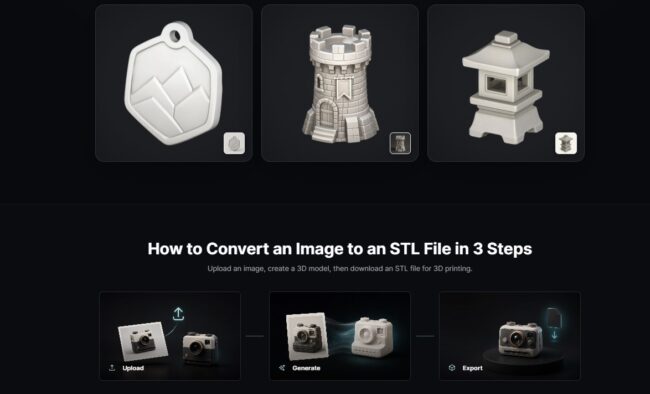
The conversion process is deliberately simple, distilled into three steps that remove the technical friction that typically accompanies 3D modelling.
Upload – Setting the Foundation for Success
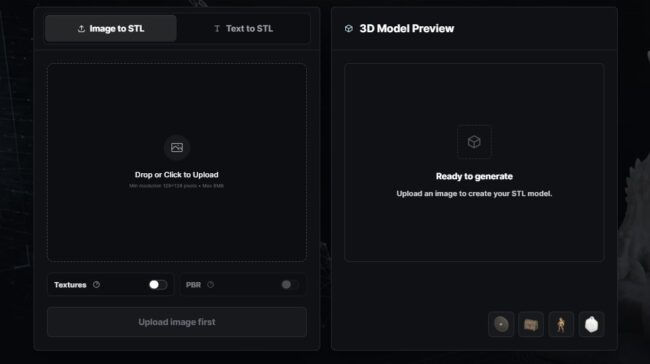
The upload step accepts JPG, PNG, JPEG, and WebP files, with a minimum resolution of 128×128 pixels and a maximum file size of 8MB. These limits are practical rather than restrictive, ensuring the AI has enough visual information to work with while rejecting files that would produce poor results anyway.
What matters more than the technical specifications is the guidance on what makes a good source image. The site recommends a centred subject, strong lighting, visible edges, and a simple background. Product photos, toy references, character concepts, props, sketches, and simple part photos are ideal. Thin wires, transparent objects, reflective surfaces, low‑contrast photos, and busy backgrounds are flagged as risky. This clarity helps users self‑select images that will actually work, reducing wasted credits and frustration.
Generate – AI Reconstruction in Action
The generation step uses AI to analyse the uploaded image, reading the subject, silhouette, contrast, and visible depth cues, then builds a mesh that can be previewed before export. For photos and sketches, AI reconstruction can create fuller 3D forms than a simple heightmap. For logos or flat art, the result may behave more like relief, embossing, or extrusion.
This distinction is important because it acknowledges that the tool is better suited to some image types than others. A character sketch with clear outlines will generate a recognisable 3D form. A flat logo with minimal depth cues will generate a relief, which may be exactly what you want for a sign or nameplate, but not what you need for a figurine.
Export – Formats That Match Your Workflow
The export step defaults to STL, which is the standard for 3D printing. But the tool also keeps GLB, OBJ, and FBX options available where supported. This flexibility is useful because not every project ends at the slicer. Sometimes you need to do cleanup in Blender or Meshmixer first, and having multiple format options saves an extra conversion step.
Real‑World Use Cases – Where the Tool Delivers Genuine Value
The site outlines several specific use cases, and each reveals something different about the tool’s strengths and limitations.
Miniatures and Tabletop Props
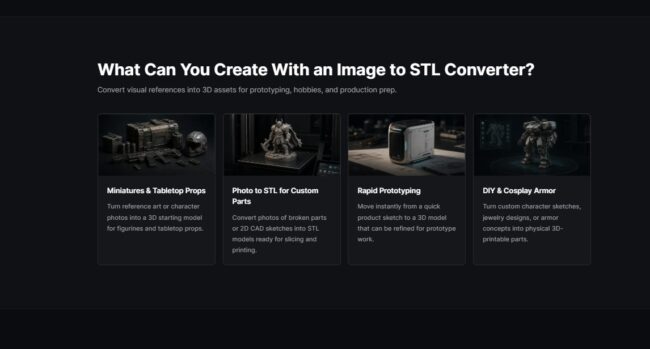
For tabletop gamers and miniature painters, the ability to turn character art or reference photos into a printable starting model is transformative. The AI captures the overall silhouette and major forms, giving you a base that gets the proportions right so you can focus on adding detail rather than rebuilding from scratch.
The limitation, predictably, is fine detail. Fingers, facial features, and small accessories come through as suggestive forms rather than crisp geometry. The site acknowledges this directly: extremely complex details may still need cleanup in Blender, Meshmixer, or your slicer before final printing. For a starting point, this is acceptable. For a finished miniature, you will want to do additional sculpting.
Photo‑to‑STL for Custom Parts
This is where the tool genuinely surprises. Photographing a broken part and converting it into an STL for a replacement is a classic maker use case, and the AI handles it surprisingly well for simple mechanical shapes with clear outlines and good contrast. The mesh captures the basic form and mounting points with enough accuracy that you can import it into a CAD tool, take measurements, and refine it for printing.
The catch is dimensional accuracy. STL files store geometry only, so scale, wall thickness, and orientation all need to be checked in your slicer or modelling tool. The site recommends using Blender, Meshmixer, Fusion 360, or Tinkercad for cleanup, hollowing, smoothing, or edits. For simple parts, this is a manageable workflow. For precision engineering, you will want to do the final modelling in a dedicated CAD package.
Rapid Prototyping from Sketches
For product designers and industrial designers, the ability to move from a quick product sketch to a 3D model in minutes rather than hours is a genuine productivity gain. The AI handles hand‑drawn sketches reasonably well when the sketch has clear outlines and good contrast between the subject and the background.
The limitation is that sketches with ambiguous lines, overlapping forms, or low contrast produce muddier results that require significant interpretation and cleanup. The site advises that clear single‑object images usually produce the best results, and this rule applies doubly to sketches.
DIY and Cosplay Armour
For cosplayers and prop makers, the tool offers a fast way to turn character sketches, jewellery designs, or armour concepts into physical 3D‑printable parts. For larger, blockier forms like pauldrons, chest plates, and gauntlets, the AI generates meshes that are recognisably the right shape and scale.
The limitation is that organic, flowing shapes with complex curves and undercuts are more challenging. The AI tends to simplify complex surfaces, which can be a benefit if you are looking for a clean, stylised look, but a drawback if you need every curve and contour from the original concept art.
A Quick Reference – Matching Image Type to Expected Outcome
|
Image Type |
Typical Output |
Best For |
Watch For |
| Product photos, character concepts | Fuller 3D form with recognisable shape | Miniatures, props, prototypes | Fine details may be simplified |
| Sketches with clear outlines | 3D form capturing overall proportions | Rapid prototyping, concept validation | Ambiguous lines produce muddier results |
| Logos, icons, flat art | Relief, embossing, or extrusion | Signs, nameplates, keychains | Not suitable for figurines or complex parts |
| Photos of broken parts | Dimensional starting mesh | Replacement parts, reverse engineering | Scale and wall thickness need checking |
| Low‑contrast, busy backgrounds | Unpredictable, may need significant cleanup | Not recommended | Best to avoid these inputs entirely |
Understanding the Economics – Credits, Not Subscriptions
The pricing model is worth understanding because it shapes how you use the tool. AI generation requires credits, so it is not an unlimited free image‑to‑STL converter. You can upload an image and inspect examples before choosing a paid credit pack, which is a sensible way to evaluate the tool without committing financially.
The credit packs are straightforward: Starter at $9.90 for 800 credits (approximately 11 generations), Pro at $29.90 for 3,000 credits (approximately 42 generations), and Max Value at $69.90 for 8,000 credits (approximately 114 generations). All paid tiers include a commercial license, which is significant if you plan to sell printed models or use them in commercial products. Credits are valid for up to one year, and there is no subscription required.
Whether this represents good value depends entirely on how frequently you need to generate models and whether you value the speed and convenience over the time cost of manual modelling.
A Practical Checklist Before You Print
The site includes a practical checklist for what to do after downloading an STL, and it is worth following because it reflects genuine workshop experience rather than marketing hype.
Open the file in Cura, PrusaSlicer, Bambu Studio, or another slicer to check scale and supports. Use Blender, Meshmixer, Fusion 360, or Tinkercad for cleanup, hollowing, smoothing, or edits. Watch for non‑manifold edges, parts that are too thin, disconnected pieces, and missing flat bases.
This checklist is not a suggestion; it is a requirement. The tool generates a starting mesh, not a finished model. The review and cleanup step is where you catch issues that would otherwise waste filament and time.
The Genuine Limitations – What the Tool Does Not Do
The site is refreshingly transparent about limitations, and this honesty is one of its strongest signals of credibility.
The tool is not a replacement for skilled modelling. It is a starting point. Extremely complex details or low‑contrast photos may still need cleanup in Blender, Meshmixer, or your slicer before final printing. For logos, icons, and QR codes, a dedicated relief or extrusion workflow may be more predictable.
The quality of the output depends heavily on the quality of your input image. Clear single‑object images with good lighting work best. Thin parts, busy backgrounds, flat logos, and low‑contrast photos may need cleanup or small edits after generation.
These limitations are not failures; they are honest boundaries that help users understand when the tool is the right choice and when it is not.
Who Should Use This Tool?
After considering the tool across multiple use cases and understanding its genuine limitations, a clear picture emerges of who benefits most.
Makers and hobbyists who want to turn photos, sketches, or reference art into printable models without learning complex modelling software will find this tool genuinely useful. The three‑step workflow removes the technical barrier that traditionally separates a visual idea from a physical object.
Product designers and engineers who need to rapidly prototype from sketches or reverse‑engineer simple parts from photographs will appreciate the speed. Moving from a quick sketch to a 3D model in minutes rather than hours changes the economics of early‑stage prototyping.
Cosplayers and prop makers who work with hard‑surface armour and accessories will find the tool valuable for rapid iteration. The ability to generate a candidate, preview it, tweak the source image, and generate again makes it easy to dial in proportions before committing to a full print.
Tabletop gamers who want to create custom miniatures or terrain pieces from character art or reference photos will find the tool a practical starting point. The generated mesh captures the overall form, leaving detail work for later refinement.
The tool is less suitable for projects that require micron‑level precision, complex organic forms with intricate detail, or logo and icon work where a dedicated extrusion workflow is more predictable. It also requires basic comfort with mesh cleanup, the generated STL is a starting point, not a finished model.
A Bridge, Not a Destination
The image to STL converter does not promise to replace your modelling software, and it does not need to. What it offers is something more practical: a fast, accessible bridge between the 2D references you already have and the 3D prints you want to make. The three‑step workflow is refreshingly direct. The AI reconstruction produces genuinely useful starting meshes rather than simple heightmaps. The preview step gives you a chance to catch issues before you commit credits or filament. And the honest documentation about limitations sets realistic expectations that prevent disappointment.
Is it perfect? No. The quality of the output depends heavily on the quality of your input image. Complex details will need manual cleanup. The credit‑based model means you are paying for each generation rather than a flat subscription. For logos and flat art, a traditional extrusion workflow may be more predictable.
But for the use cases it is designed for- miniatures, replacement parts, prototypes, cosplay props, and rapid iteration- it delivers exactly what it promises: a solid, printable starting point that gets you from image to STL in minutes rather than hours. That is not a replacement for skilled modelling. It is a complement to it. And for many makers, that is exactly the tool they have been waiting for.