
Over the past two years, video AI has moved from polished demos to real public use, and that exposed a major problem. Many tools looked impressive under ideal conditions but struggled with ordinary footage, imperfect lighting, awkward framing, and natural motion.
That gap made editors and producers treat AI video as useful for experiments, not final production work. Now, the shift is becoming clearer. Newer platforms are focusing less on flashy capability and more on reliable workflows, which is exactly what professional teams need.
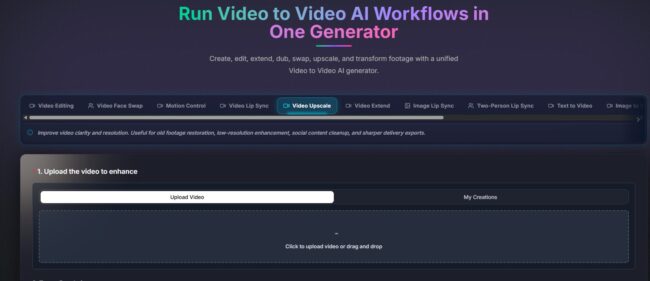
The approach that caught my attention consolidates six different video transformation tasks into a single unified generator. Instead of treating character replacement, clothing swaps, face swaps, lip sync, upscaling, and duration extension as separate products, Video to video ai treats them as different modes of the same underlying process. Upload a video, add reference assets, write a prompt, generate a result – that pattern applies to every task, which means you spend less time learning interfaces and more time making creative decisions.
The Maturity Marker: When Workflow Becomes More Important Than Features
In any emerging technology, the early phase is defined by feature competition – who has the most impressive demo, who can generate the most realistic output, who can claim the highest resolution. The mature phase is defined by something else entirely: workflow continuity. When a tool stops being a novelty and starts being a professional asset, it stops forcing you to adapt to its limitations and starts adapting to your creative process.
The unified generator model represents that maturity shift. It does not claim to have the most advanced model or the highest output resolution. Instead, it claims to make the entire editing process more coherent – to reduce the friction of moving between tasks so you can focus on the quality of the final output rather than the logistics of getting there. That is a fundamentally different value proposition, and it is one that matters much more in a production environment than raw performance metrics.
Testing the Workflow Across Real Production Scenarios
To evaluate whether this approach actually delivers on its promise, I put the platform through a series of real-world tests using three different source clips: a walking shot, a talking-head shot, and a low-resolution archival clip.
Each clip was run through multiple workflows to assess both the visual quality of the output and the friction involved in getting there.
Character and Clothing Replacement: Motion Integrity as the Primary Metric
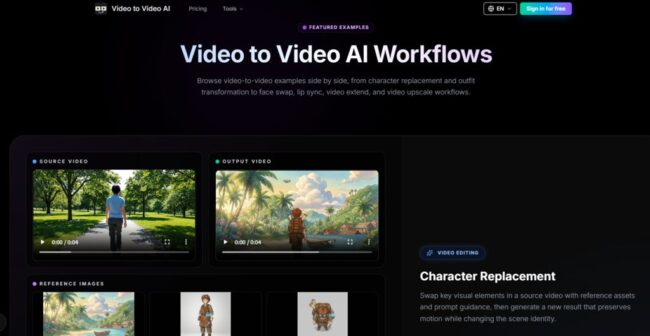
The walking shot featured a subject moving across a moderately lit indoor space. For character replacement, the goal was to swap the subject with a different character using two reference images – one frontal and one side view – while keeping the original walking pace and head movement intact. For clothing swap, the goal was to change the subject’s outfit to match a different garment reference.
Why Motion Integrity Matters
When you replace a character or change clothing in video, the motion is what sells the effect. If the new character moves unnaturally or if the clothing warps during movement, the viewer’s brain immediately registers the inconsistency. Most AI tools optimize for static frame accuracy, which produces output that looks correct in screenshots but falls apart in playback.
Actual Performance
The platform preserved the original walking rhythm and camera motion with minimal drift. The new character stayed locked to the original movement arc, and the background remained stable throughout the clip. The clothing swap maintained the new garment’s visual identity across the full walking sequence, and the fabric did not warp or shift unnaturally during the turn. The consistency across frames was strong enough that I could not visually distinguish which frames were original and which were generated.
Strengths and Limitations
The multi-angle reference support appears to be a deliberate design choice for improving motion consistency. In my testing, providing both front and side references produced noticeably cleaner results than a single image. However, the output quality depends heavily on the reference assets themselves – poorly lit or low-resolution references introduced visible artifacts. The result may vary when the source video contains rapid occlusion or complex hand gestures.
Face Swap and Lip Sync: Preserving Performance While Changing Identity
The talking-head clip featured a subject speaking directly to camera with moderate head movement. For face swap, the goal was to replace the subject’s face with a different source face while preserving the original performance and motion. For lip sync, the goal was to replace the original audio with a different voice track while keeping mouth movements aligned.
Why Performance Preservation Is Critical
Face swaps and lip sync both require the AI to understand emotional timing and delivery pacing. If the replacement face does not match the original performance’s energy, or if the mouth movements feel disconnected from the speech rhythm, the output becomes unwatchable. This is why many tools produce output that looks technically correct but feels emotionally wrong.
Actual Performance
The face swap output preserved the original shot structure and motion, and the replacement face tracked consistently even during slight head movements. The lip sync output maintained natural pacing and expression, with mouth movements aligning to the new speech without the exaggerated openness that plagues many dubbing tools. Neither output felt like a cheap deepfake – they looked more like competent compositing work.
Strengths and Limitations
The platform handles these tasks as integrated parts of the same editing pipeline. However, the face swap result is only as good as the source and target images provided. Poorly matched lighting or extreme angle differences may produce visible seams. Using a source image with similar lighting to the target video produced the cleanest results in my testing.
Upscaler and Extend: Finishing Without Starting Over
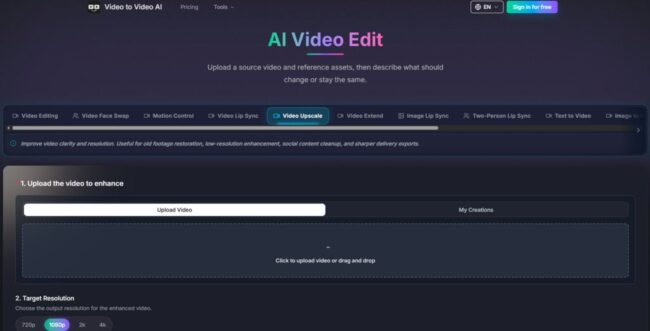
I ran a low-resolution archival clip through the upscaler and used the video extend workflow to add several seconds to a looping scene.
Why Finishing Tasks Are Often Overlooked
Most AI video platforms focus on creative transformations – face swaps, character replacement, style transfer – and treat finishing tasks like upscaling and duration extension as afterthoughts. This creates a workflow gap where you handle the creative work in one tool and the finishing work in another, which reintroduces the exact fragmentation problem the platform is trying to solve.
Actual Performance
The upscaler enhanced textures and edges in a way that made the footage look noticeably cleaner and richer. The difference was most apparent in skin tones and fabric details. The video extend tool allowed me to control the added duration in seconds, and the generated extension maintained visual coherence with the original clip.
Strengths and Limitations
These workflows are straightforward and produce consistent results for most footage types. However, the upscaler’s effectiveness depends on the source material – heavily compressed footage may not recover perfectly. The extend tool works best for scenes with repetitive motion or static backgrounds.
The Four-Step Pattern That Makes the Whole Thing Work
The platform’s unified generator follows a consistent four-step pattern across all models, which is the primary reason it reduces friction. Instead of learning different interfaces for different tasks, you learn one workflow and apply it everywhere.
Step 1: Upload the Source Video
Start with the clip you want to transform while keeping its camera and motion structure intact. The source video serves as the motion backbone for every subsequent edit.
In my testing, clips with clear subject separation and consistent lighting produced better results. The platform does not impose arbitrary length limits, though longer clips require more processing time.
Step 2: Add Reference Assets
Upload supporting images or element packs that define the new visual target. For character replacement, this means reference images of the new character. For clothing swaps, this means front and back views of the new garment. For face swaps, this means a source face image and a target face image.
The quality of the reference assets directly influences the final output. Well-lit, high-resolution references produced noticeably cleaner results. The platform supports multi-angle asset packs for stronger consistency.
Step 3: Write the Edit Prompt
Reference the uploaded assets in the prompt and explain what should change or stay. The prompt acts as the creative brief for the generation.
Prompts that explicitly referenced the uploaded assets and described the desired change in concrete terms produced the most reliable results. Vague prompts sometimes led to unexpected interpretations.
Step 4: Generate the New Version
Render the edited video and download the version that best fits the creative brief. The generation process runs entirely in the browser.
The platform supports repeated generation attempts, which allows for creative exploration without penalty. Running multiple generations with slightly varied prompts produced a range of options.
How the Unified Workflow Compares With Traditional AI Video Tools
Instead of exporting footage from one tool, uploading it into another, learning a new interface, and trying to preserve consistency across every edit, the same workflow carries across each task.
That difference matters most when you compare the unified generator model with traditional AI video tools that isolate every feature into a separate process.
Table: Workflow Continuity vs. Feature Isolation
| Aspect | Unified Video Generator | Traditional AI Video Tools |
| Use Process | One consistent 4-step flow for all tasks | Separate interfaces for each feature |
| Creative Control | Prompt + reference images + source video | Often limited to preset styles or single inputs |
| Learning Curve | Learn once, apply everywhere | New logic required for each tool |
| Scene Consistency | Preserves original motion and shot structure | Often breaks motion during transfer |
| Iteration Speed | Rapid re-generation within the same interface | Slower due to tool switching and re-exporting |
| Best Fit | Multi-edit workflows on the same footage | One-off edits or single-feature use cases |
This is where the workflow-first approach becomes more than a convenience. It directly affects speed, consistency, and the amount of creative control editors can keep while moving through different stages of production.
Who This Workflow Actually Serves
This platform is most valuable for creators and teams who already know the specific editing problems they need to solve and want a focused tool that handles multiple related tasks in one place. For advertisers testing multiple creative variants, the character replacement and clothing swap workflows reduce the need for reshoots. For localization teams, the lip sync workflow streamlines multilingual production. For content creators repurposing footage, the upscaler and extend tools add flexibility.
The platform does not replace traditional editing suites. It complements them by handling transformations that would otherwise require expensive VFX work or lengthy manual rotoscoping. For teams already working with AI video tools, the unified generator approach offers a practical alternative to juggling multiple standalone products.
A Practical Tool for Real Production Workflows
After testing the platform across real footage and multiple workflows, its value is clear: it makes complex video-to-video editing feel more practical, repeatable, and production-ready.
Character replacement, clothing swaps, face swaps, lip sync, upscaling, and video extension all benefit from one consistent process.
It still depends on strong prompts, clean source footage, and quality reference assets, so perfection is not guaranteed.
But in a crowded field of flashy demos, this workflow-first approach feels genuinely useful for creators who need fast iteration without jumping between separate tools.